Course welcome
Introduce the instructor, learner outcome and structure using a short presenter-led animation.
Animator is designed for desktop Google Chrome or Microsoft Edge. Your browser may have limited editing, AI or export support, but you can continue and try the workspace.
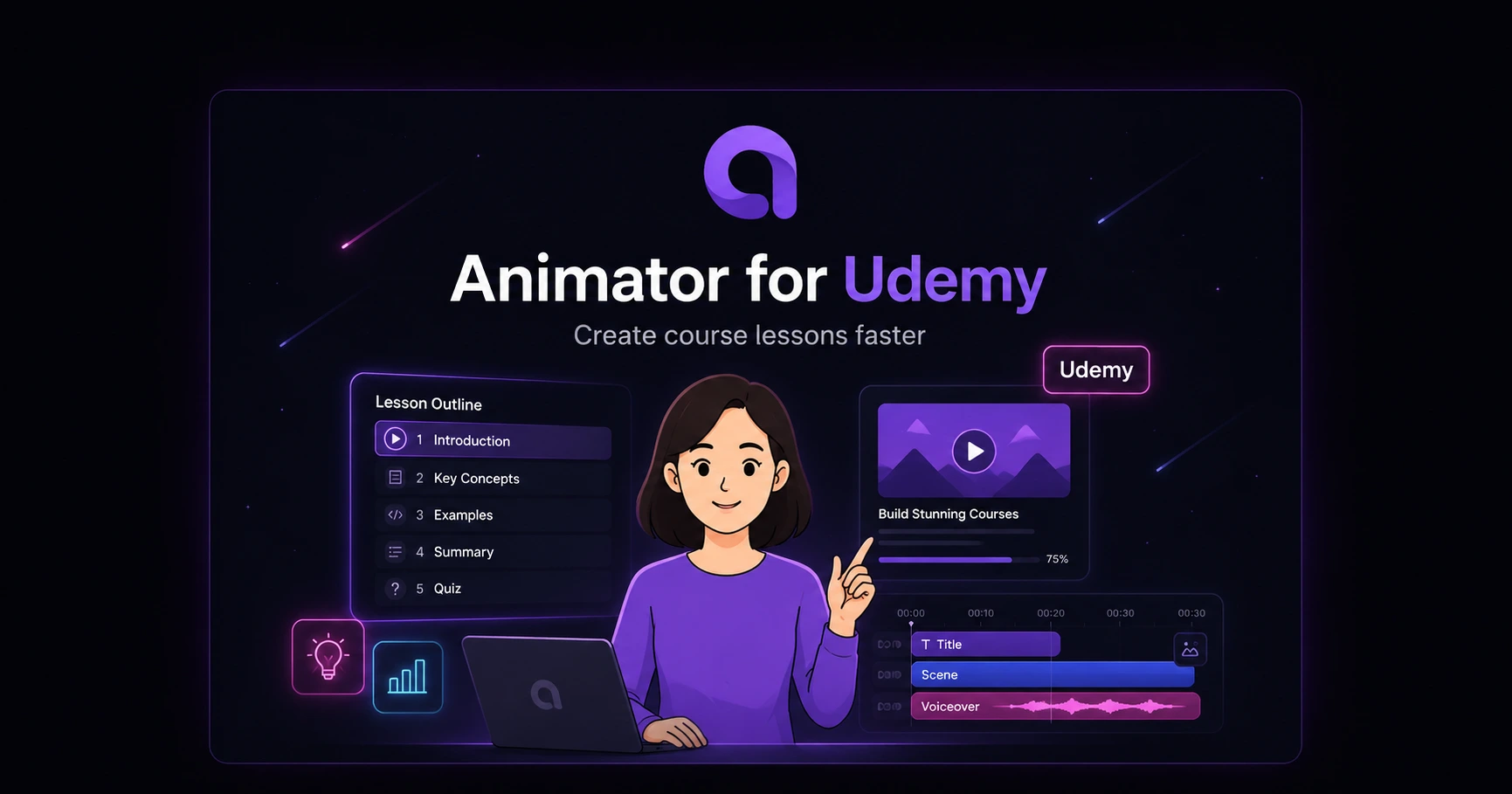
Animator for course creators
Turn a course outline into clear, editable visual lectures with AI storyboarding, handwriting, talking characters, voiceovers and platform-ready landscape video.
Use these requirements as a production checklist and confirm the latest official platform documentation before publishing.
Introduce the instructor, learner outcome and structure using a short presenter-led animation.
Explain one difficult idea with timed drawings, diagrams and narration.
Show compact code visuals and explain the execution or design step by step.
Summarise the most important points before the learner moves to the next module.
Create a concise visual preview of the transformation the course promises.
Replace or re-export one lecture without rerecording the entire course.
Example project
Udemy requires at least 720p HD and horizontal 16:9 video. Animator Free exports up to 720p with a Made with Animator watermark, while Pro exports Full HD 1920×1080 without the watermark.
Free is suitable for validating the workflow and preparing drafts. Pro is the recommended production option for a paid public course because the Full HD result is cleaner and does not carry the Animator watermark.
Udemy specifically warns against audio-only lessons and videos limited to a static slide. Animator can keep the explanation visually active through handwriting, diagrams, image changes, presenter motion and timeline-based emphasis.
The goal is not constant decorative motion. Each visual change should introduce, clarify or reinforce something the learner is hearing.
Shorter lesson projects are easier to update, export and upload. A reusable intro, presenter and typography system can keep the course consistent without placing every lecture in one very large browser project.
Export project bundles or maintain a deliberate backup workflow because browser-local projects depend on the selected workspace and device storage.
Compatible Local AI can help structure lesson ideas on the user’s device. Hosted AnimatorAI and BYOK requests use their configured cloud services, so unpublished or confidential course material should be handled according to the relevant provider policy.
Animator is an authoring tool, not an Udemy integration. The final workflow is export from Animator and upload through Udemy’s course curriculum tools.
Before exporting, watch the complete lesson at normal speed and confirm that every visual supports the narration. Check pronunciation, caption timing, spelling, diagram labels and whether small text remains readable in a 16:9 player. Remove decorative motion that competes with the explanation and leave enough time for learners to inspect worked examples.
Export a short sample before rendering a complete module. Upload it through Udemy’s normal creator workflow, then review the processed version on desktop and mobile. Platforms may transcode video after upload, so inspect the final streaming result rather than relying only on the local MP4. Keep the source project until the published lesson has passed quality review.
Use clear project names that include the course, module, lesson number and revision. Store scripts, source images, licence notes and exported masters beside the corresponding Animator project bundle. This makes it easier to correct one lesson after a platform policy, product interface or technical example changes.
Browser-local projects depend on the selected workspace and available device storage, so a deliberate backup routine is essential. Export project bundles at meaningful milestones and keep at least one copy outside the active browser profile. When a common intro or visual style changes, update the reusable source template first and then revise only the lessons that need the new version.
Yes. Animator Free exports up to 720p, which meets Udemy’s stated minimum. Free exports include a Made with Animator watermark.
Udemy accepts 720p, but Animator Pro 1080p is the recommended customer-facing choice for sharper text, code and diagrams.
No direct integration is claimed. Export the lecture as a supported video and upload it through the Udemy curriculum editor.
Animator can help plan a course or lesson, but quality is better when each lecture has a clear outcome and is reviewed and edited individually.
Yes. Keep the source project or project bundle, edit the affected lecture, export it again and replace that video in Udemy.
Facts were checked against the official sources below. Pricing and product features can change.
720p minimum, horizontal 16:9 and dynamic relevant visuals.
Minimum course duration, lecture count, video and audio expectations.
Animator is not affiliated with or endorsed by Udemy. Udemy requirements can change; verify the current official guidance before publishing.
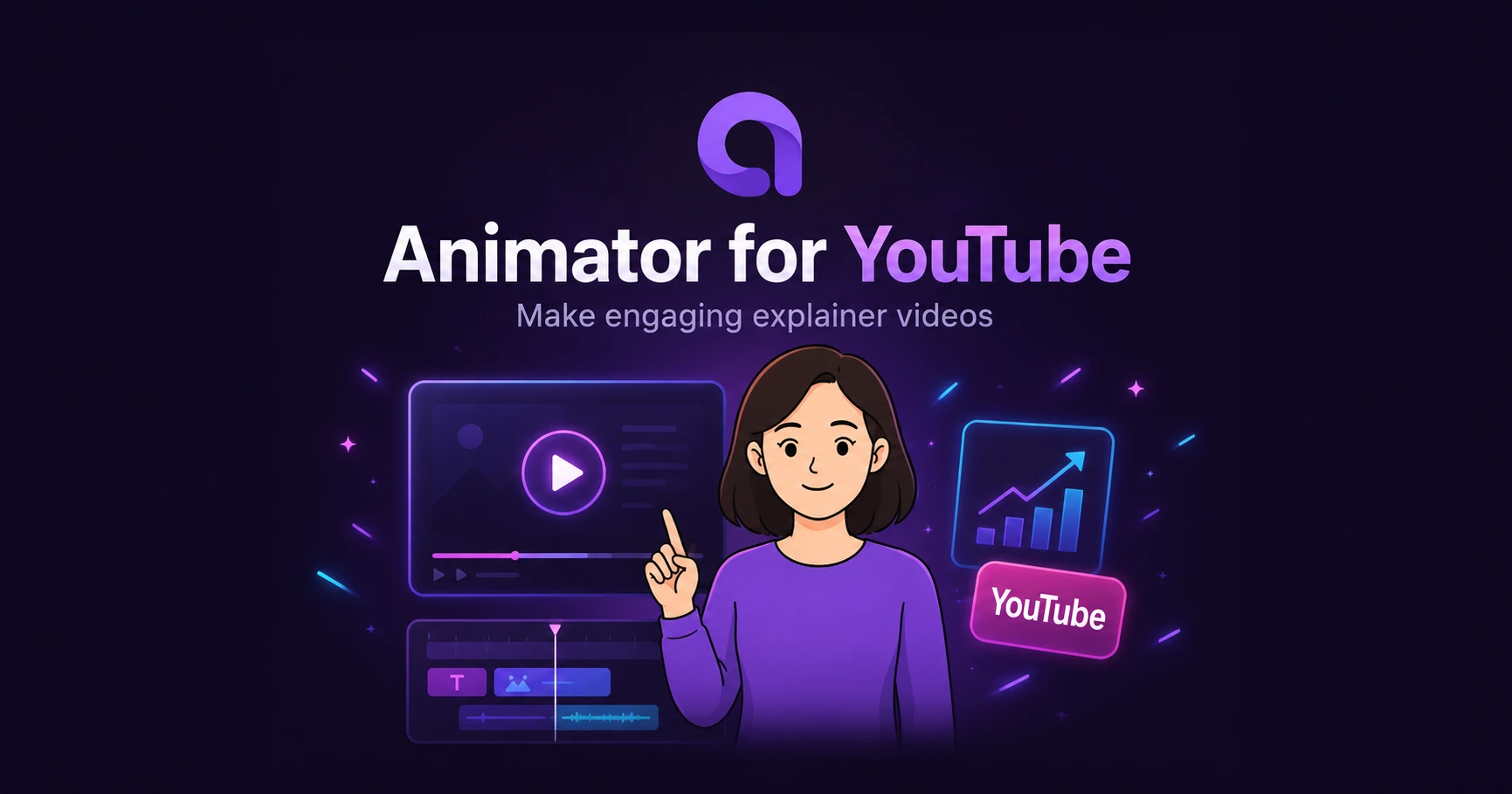
Build educational explainers, faceless lessons and product walkthroughs with AI storyboards, visual beats, talking presenters and a complete browser timeline.
Read page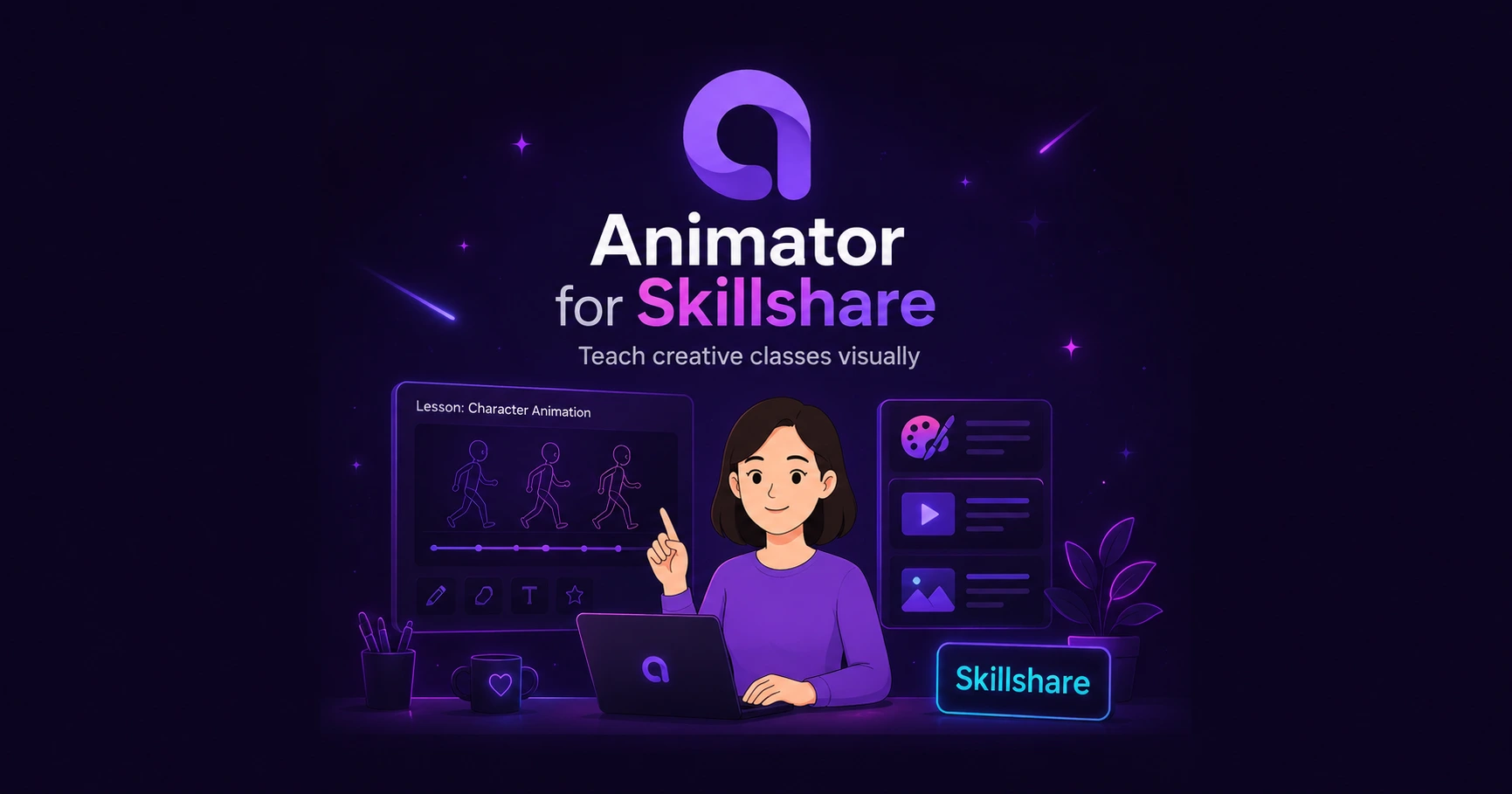
Turn a class idea and student project into a series of short visual lessons with AI planning, whiteboard demonstrations, narration and reusable lesson templates.
Read pageStart with a single clear outcome, refine the timeline and test the exported video before building a complete series.
Open Workspace