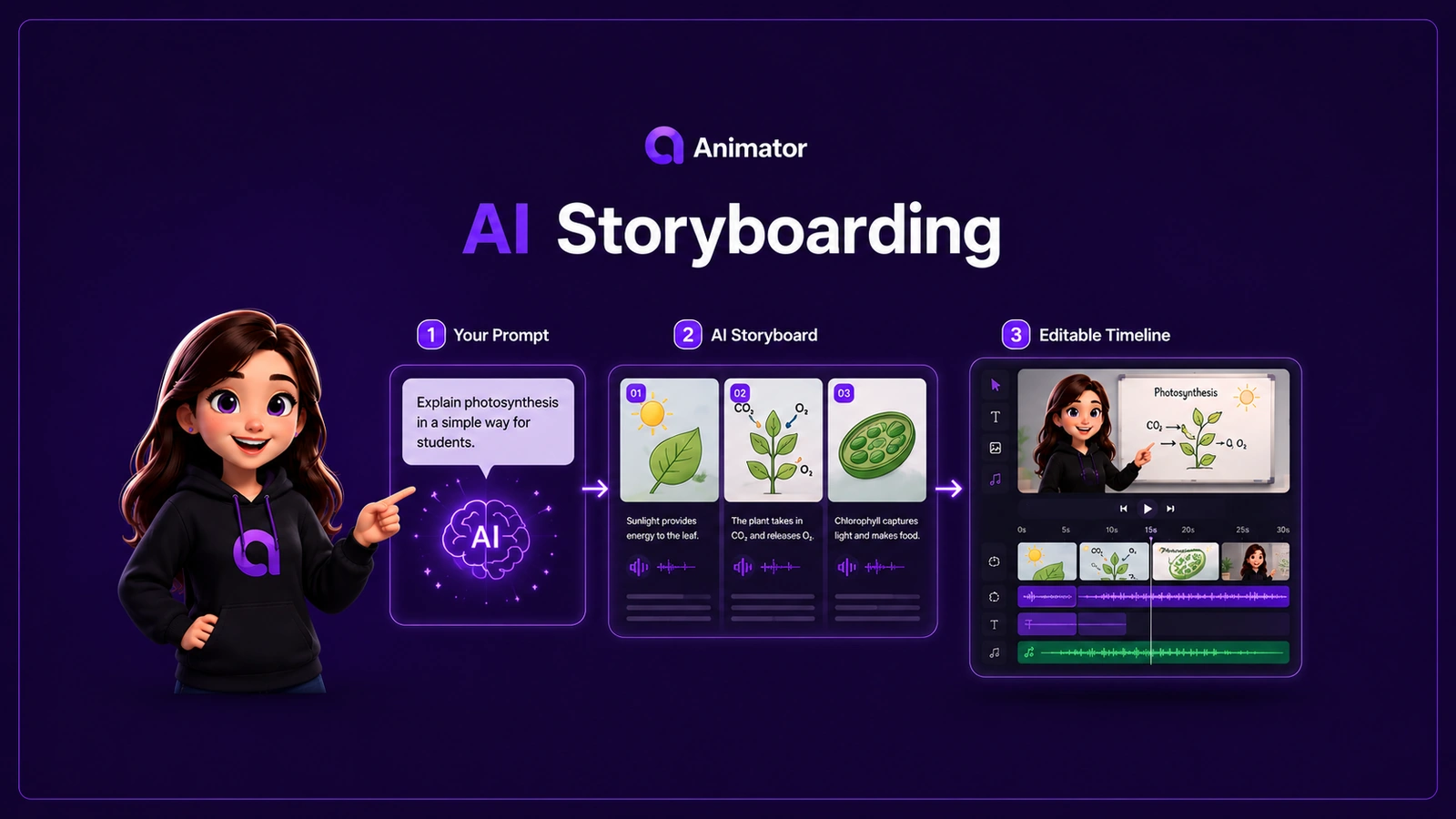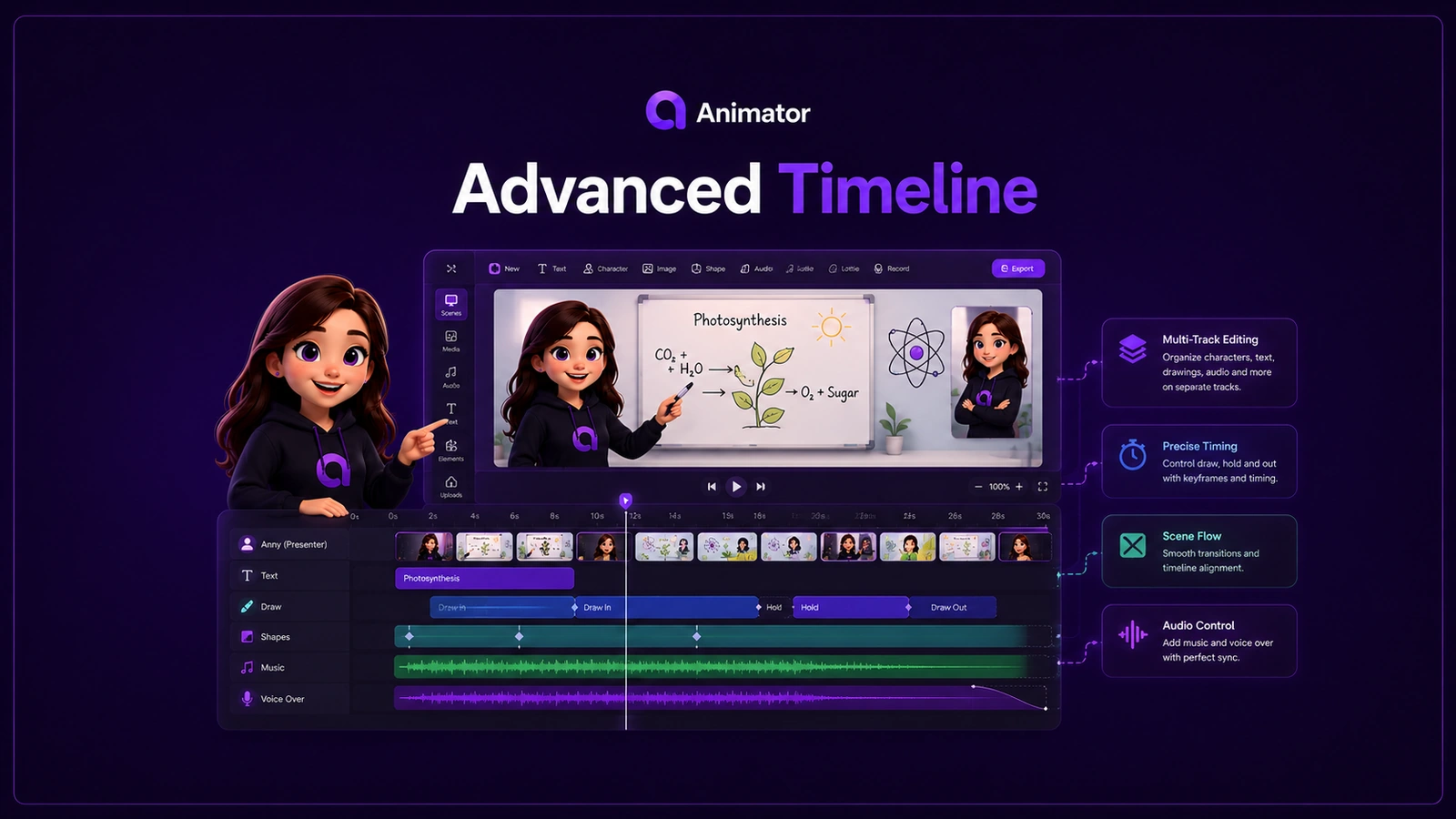
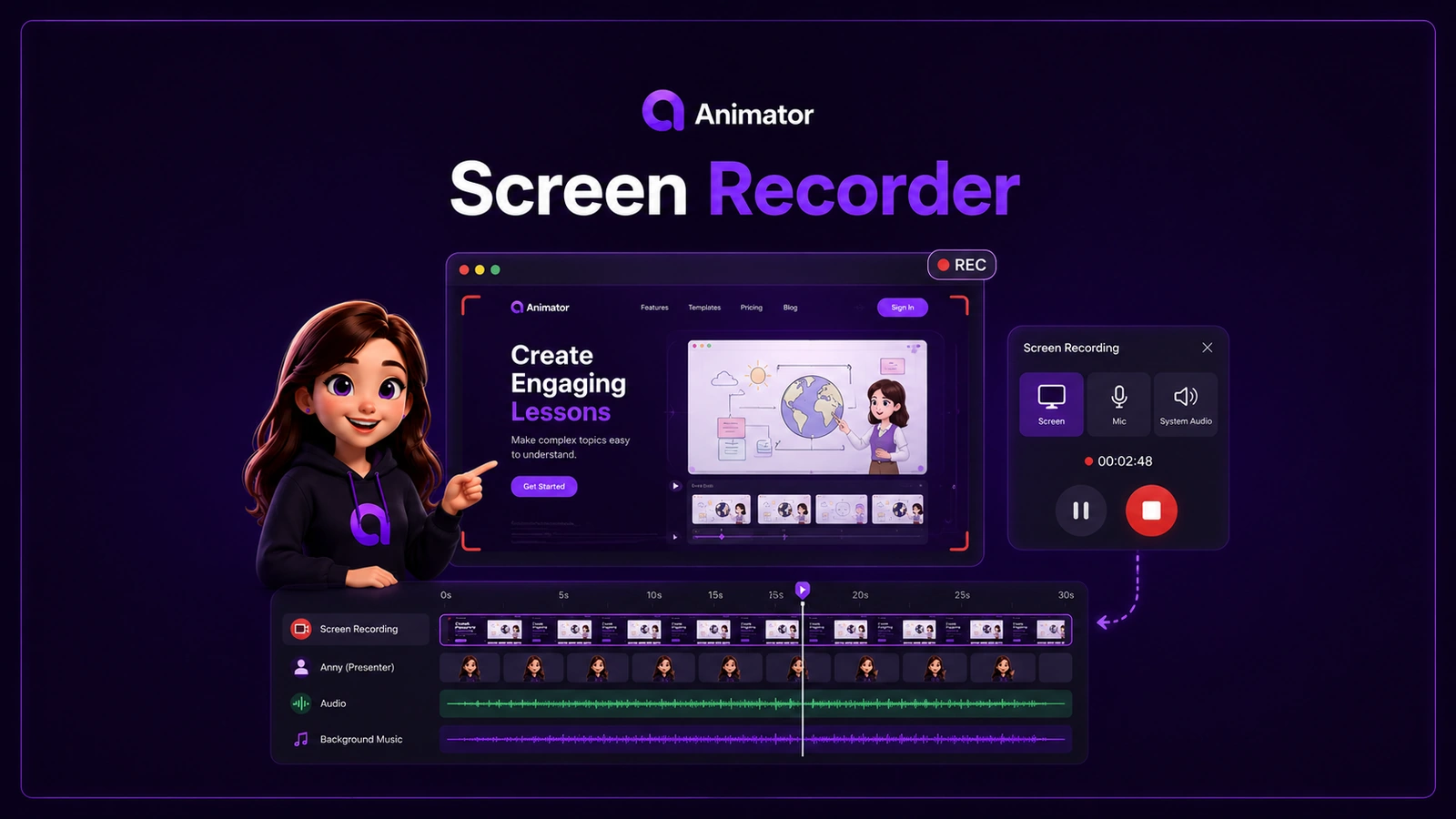
Screen recordings are excellent for showing software, terminal commands, product workflows and step-by-step instructions. Whiteboard animation is excellent for explaining the reason behind those actions. Animator brings the two formats into one timeline.
With the Animator Screen Recorder, you can record a supported screen, window or browser tab, include microphone audio and supported system audio, then add the recording to the media library and timeline for further editing.
Why combine screen recording and whiteboard animation?
A raw screen recording shows what happened. It does not always explain why it happened, what the viewer should notice or how the steps connect.
Animator lets you place a recording beside or between:
- handwritten headings;
- arrows and callouts;
- explanatory diagrams;
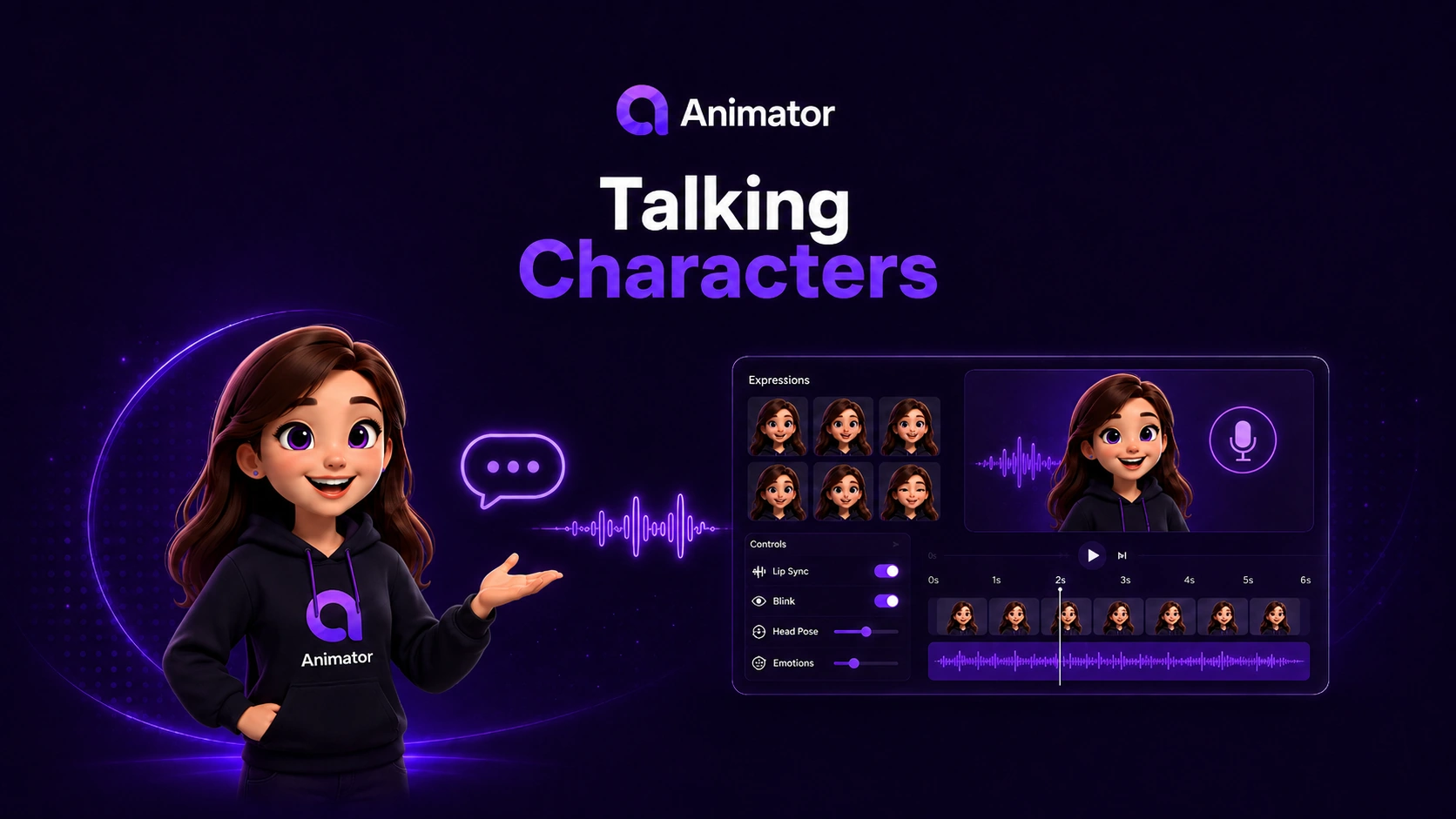
- Talking Characters;
- generated narration;
- captions;
- images, SVGs and Lottie animations;
- summary scenes and next steps.
This is useful for software tutorials, command-line demonstrations, onboarding, customer support and product education.
How the browser screen recorder works
Modern desktop browsers expose a secure Screen Capture API. When recording begins, the browser asks you to choose the surface you want to share—for example, an entire display, an application window or a browser tab.
Animator uses the browser-provided permission flow rather than bypassing it. This means:
- you choose what is captured;
- the browser displays its own recording or sharing indicators;
- the capture can be stopped through Animator or the browser controls;
- browser and operating-system support can affect system-audio availability.
The browser’s own sharing notice is a security feature and cannot be hidden by Animator.
Record a terminal, application or browser workflow
Select the entire display when you need to switch between applications—for example, moving from Animator to a terminal window to demonstrate command-line steps. Select a single window when you want to limit the captured content. Select a browser tab when the tutorial only needs one web application.
For best results:
- close private or distracting windows;
- disable unnecessary notifications;
- prepare the application at the correct starting screen;
- test microphone levels;
- decide whether system audio is required;
- record a short test before the full take.
Browser behaviour can vary, so test your selected capture mode on the same computer and browser you will use for the final recording.
From recording to timeline
After the recording ends, Animator can add the captured media to the project so it can be edited like other timeline content.
You can then:
- trim the beginning and end;
- move the recording to another point in the lesson;
- layer narration, music or sound effects;
- add captions;
- place a Talking Character before or after the recording;
- add whiteboard explanations around difficult steps;
- combine several short recordings into one tutorial;
- export the complete visual lesson.
Animator Screen Recorder compared with Camtasia
Camtasia is a mature screen-first desktop recording and video-editing product for Windows and macOS. It is designed for polished screen recordings and includes a broad professional editing workflow. Animator is not trying to reproduce every Camtasia feature.
Animator is a focused option for creators who want screen recording inside a browser-first whiteboard animation workflow.
| Area | Animator | Camtasia |
|---|---|---|
| Primary focus | Whiteboard lessons, explainers and product stories with integrated screen recordings | Professional screen recording and general video editing |
| Installation | Runs in a supported desktop browser | Installed desktop application |
| Recording workflow | Browser permission flow for screen/window/tab capture | Native desktop recorder |
| Whiteboard animation | Core canvas, drawing, characters and visual explanation workflow | Can build annotated videos, but whiteboard animation is not its central editing model |
| Timeline | Multi-track timeline for visuals, voice, captions, characters and recordings | Mature multi-track professional video timeline |
| AI storyboarding | AnimatorAI™ and supported Local AI create editable visual drafts | Camtasia offers its own AI and editing assistance depending on plan/version |
| Talking presenters | Built-in Animator Talking Characters | Camera, media and other presenter workflows |
| Price approach | Free plan; Pro lifetime launch offer | Commercial Camtasia plans; check current TechSmith pricing |
| Best fit | Teachers, course creators, product educators and explainers that mix drawings with software demonstrations | Dedicated screen-recording professionals and teams needing Camtasia’s broader desktop toolset |
Pricing and feature packaging can change. Check each product’s current official page before making a purchase decision.
When Animator may be the better fit
Animator may suit you when:
- you want to begin without installing a large desktop editor;
- your tutorial needs both screen footage and visual explanation;
- you want a free project workflow before upgrading;
- you want Local AI where supported;
- you need an editable Talking Character and whiteboard canvas;
- you create lessons, training or product stories rather than general-purpose video productions.
When Camtasia may be the better fit
Camtasia may suit you when:
- screen recording is your main production format;
- you need a mature native desktop capture workflow;
- your organisation already uses TechSmith tools;
- you need Camtasia-specific effects, integrations or enterprise support;
- you prefer a dedicated installed editor for professional screen-first production.
The right choice depends on the type of video you make. Animator’s advantage is the connection between recording, explanation and whiteboard storytelling—not simply the ability to capture a screen.
Browser and audio considerations
Animator is designed for a current desktop version of Google Chrome or Microsoft Edge. Screen capture support, system audio and available sharing choices are controlled partly by the browser and operating system.
Microphone capture usually requires explicit browser permission. System audio may only be offered for certain capture surfaces or environments. Always run a short test and listen to the result before recording a long tutorial.
A tutorial structure that works
Try this sequence for a software lesson:
- Presenter introduction — explain what the viewer will achieve.
- Whiteboard overview — show the workflow or architecture.
- Screen recording — demonstrate the real steps.
- Callout scene — highlight a command, setting or warning.
- Second recording — show the result.
- Summary — recap the important points.
- Next action — give the viewer a clear next step.
This structure gives viewers context before the demonstration and reinforcement after it.
Start recording in Animator
Animator is free to use for unlimited local projects and includes the complete timeline editor, Local AI where supported and up to 720p export with a small watermark. Animator Pro adds Full HD 1920×1080 export, premium assets, AnimatorAI™ Credits, screen recording and clean exports without the Free watermark.
Open Animator to create a screen-recorded tutorial with whiteboard explanations in the same project.