Many whiteboard animation tools are built around a simple idea: create a scene, choose an asset, set a duration and move to the next scene. That is enough for a basic doodle video. It becomes restrictive when the project needs precise narration, layered visuals, characters, screen recordings, captions or revisions.
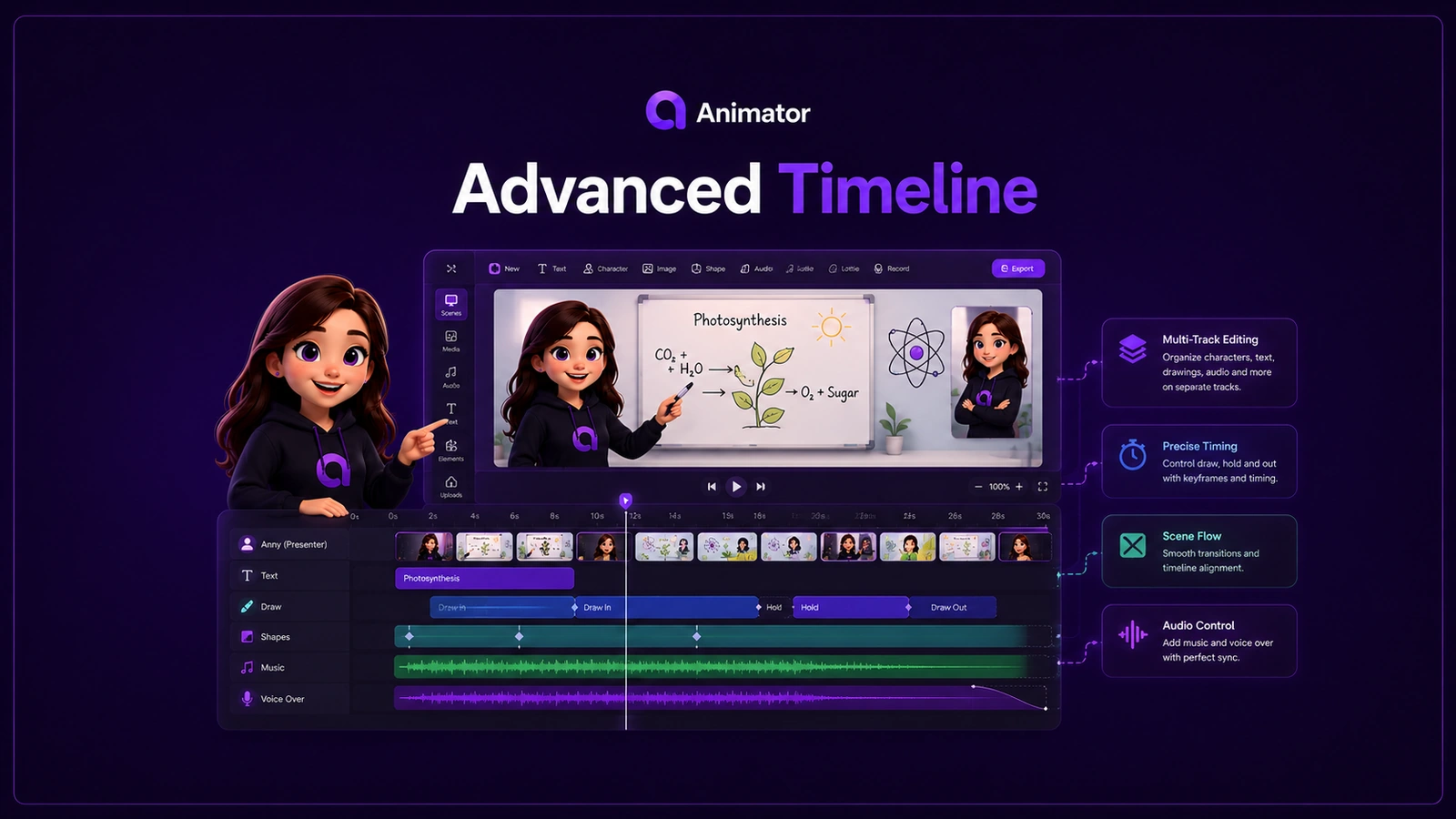
Animator uses a timeline-based whiteboard animation workflow. Every element has a position in time, and related elements can live on separate tracks. This brings the control of a video editor into a browser-first whiteboard maker.
What is a timeline-based whiteboard animation maker?
A timeline represents the video from beginning to end. Clips show when each element appears, how long it stays and when it finishes.
In Animator, timeline elements can include:
- whiteboard drawings and handwriting;
- text and headings;
- images, SVGs and Lottie animations;
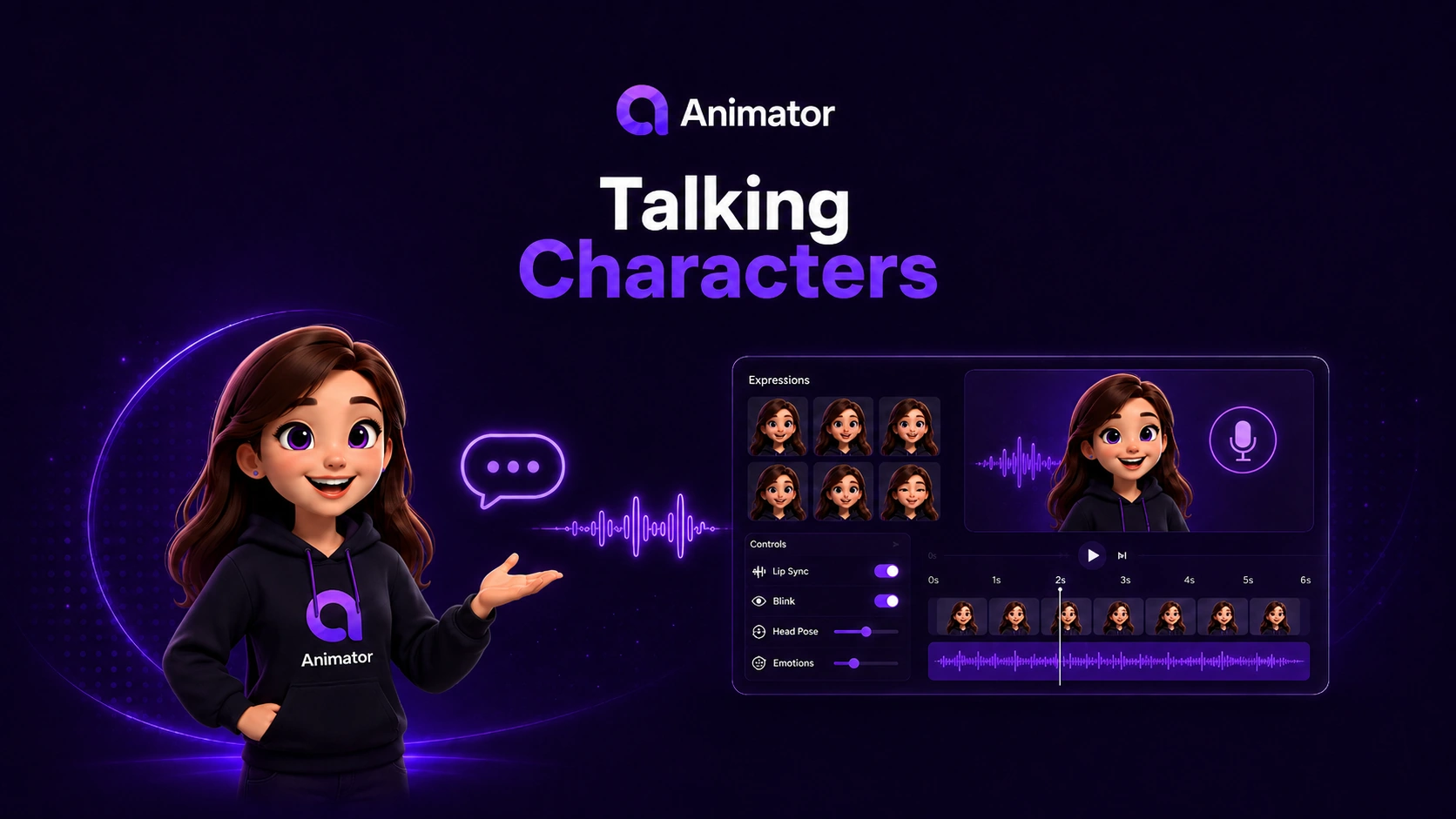
- Talking Characters;
- narration and recorded audio;
- captions;
- imported video;
- browser screen recordings;
- music and sound effects;
- grouped or compound sections.
You can scrub through the project, press play, trim clips, move them earlier or later, duplicate them and layer several elements at the same time.
Why the timeline matters
Precise synchronisation
A diagram should appear when the narrator introduces it—not five seconds before or after. Timeline editing lets you align visuals with exact phrases, audio waveforms and captions.
Layered explanations
A single scene might contain:
- a background diagram;
- an animated arrow;
- a character presenting on the left;
- narration audio;
- a highlighted keyword;
- a caption track;
- a short Lottie motion graphic.
Tracks make these layers manageable.
Easier revision
When one section changes, move or replace the relevant clips. You do not need to regenerate the entire video.
Better pacing
Scrubbing and playback reveal scenes that are too fast, pauses that are too long and visuals that compete with the narration.
Reusable structures
Duplicate a scene, group a sequence or reuse a template while keeping every element editable.
Draw, hold and exit timing
Whiteboard visuals are not only “on” or “off.” A useful animation often has three phases:
- Draw in — the line, image or text is revealed.
- Hold — the viewer has time to understand it.
- Exit or transition — the element clears, moves or gives way to the next idea.
Animator’s timing model makes these phases visible and adjustable. This helps prevent a common problem where an illustration finishes drawing and immediately disappears before the viewer can absorb it.
Multi-track editing for advanced projects
Separate voice from visuals
Keeping narration and visuals on different tracks allows you to adjust a picture without accidentally changing the audio.
Place characters over a scene
A Talking Character can enter after the diagram begins, speak through the key section and leave before the final summary.
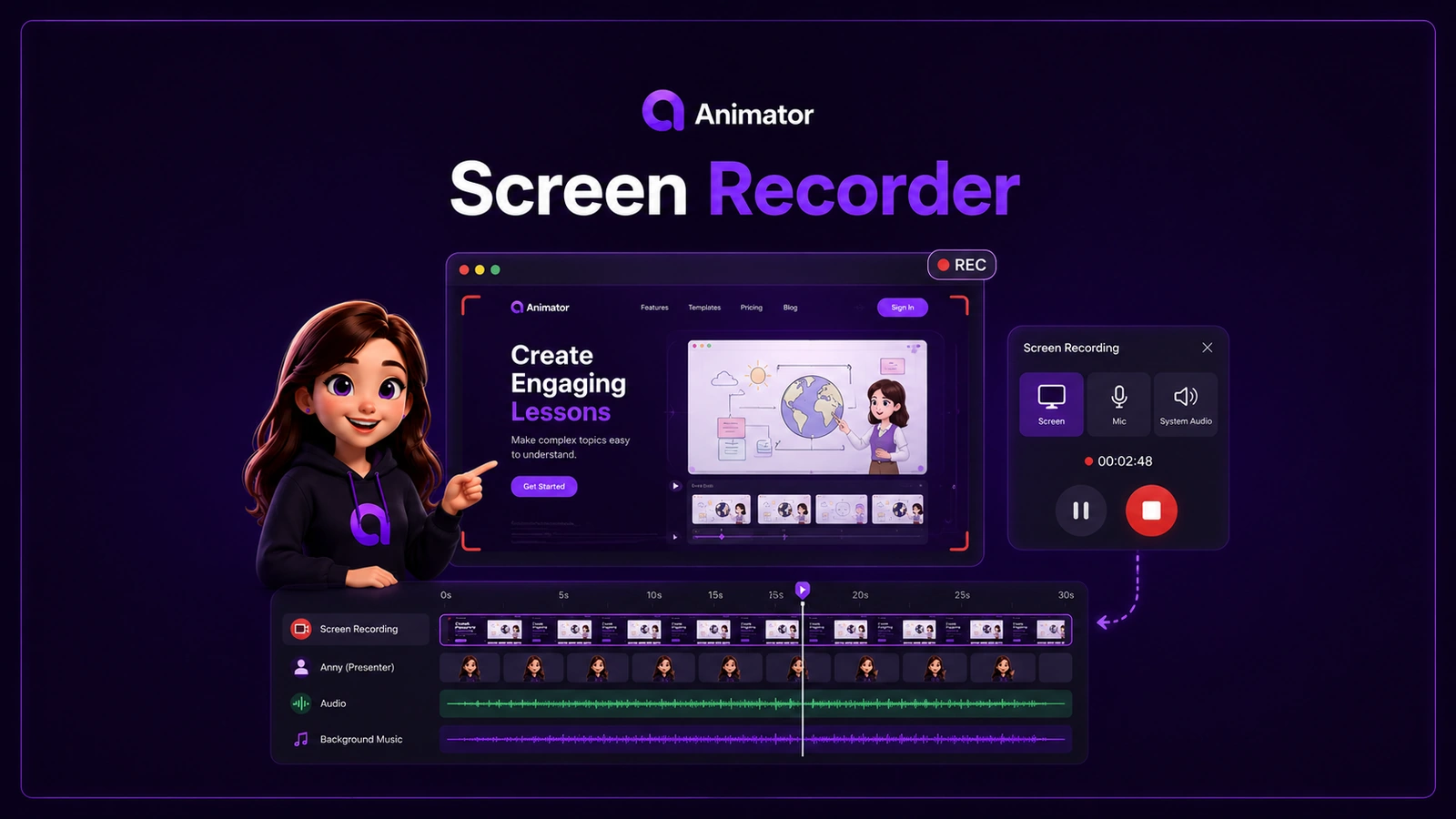
Add screen recordings
A product explanation can begin with a whiteboard overview, cut to a screen recording, then return to a diagram that explains what happened behind the interface.
Use captions independently
Captions can be corrected and timed without altering the voice clip.
Build compound sections
Related clips can be organised into a reusable section or scene structure, making a long lesson easier to manage.
Timeline benefits for teachers and course creators
A timeline helps educational creators:
- match visuals to narration;
- extend a worked example without rebuilding the introduction;
- update one fact in an existing course;
- keep chapter structures consistent;
- add pauses for learners;
- align captions for accessibility;
- reuse a presenter and lesson layout across a series.
This is particularly valuable for course platforms, where a lesson may need updates months after it was first published.
Timeline benefits for product and workplace videos
Products, interfaces and procedures change. A timeline-based project can be revised when:
- a button moves;
- a process gains a new step;
- a brand asset changes;
- a safety warning is updated;
- a feature is renamed;
- a new screen recording replaces an old one.
Instead of recording the complete video again, replace the affected clips and adjust the surrounding timing.
AI generation works better when the result is editable
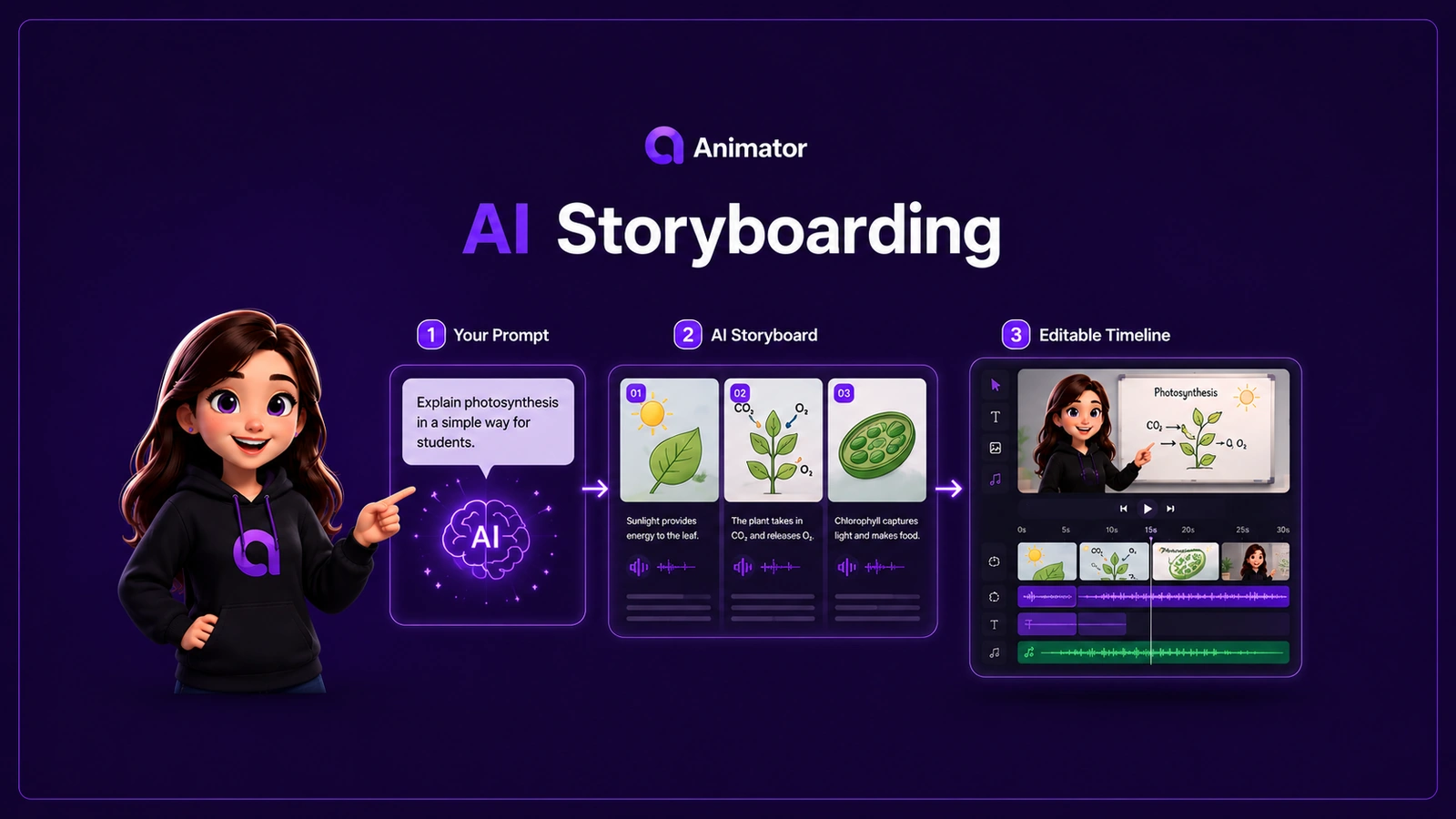
AnimatorAI™ can create a storyboard and timed first draft, but AI output still benefits from human review. A timeline makes that review practical.
You can:
- shorten an AI-generated scene;
- rewrite narration;
- replace an inaccurate visual;
- move an example earlier;
- add more hold time;
- remove a repetitive point;
- insert a screen demonstration;
- change a Talking Character;
- correct caption timing.
AI solves the blank-page problem. The timeline supports the production and revision work that follows.
Browser-first does not have to mean basic
Animator runs in a supported desktop browser, but its editing model is designed for more than a simple template form. The workspace combines:
- canvas positioning;
- media import;
- multi-track timeline editing;
- timeline zoom and scrubbing;
- voice waveforms;
- captions;
- AI-generated scenes;
- Talking Characters;
- screen recordings;
- video export.
Projects are created locally in the browser, and the Free plan supports unlimited local projects.
A practical example: software tutorial
Imagine a lesson called “Deploy a web application.”
Scene 1: Objective
A Talking Character introduces the outcome while a simple architecture diagram draws on screen.
Scene 2: Preparation
Handwritten prerequisites appear one at a time with short holds.
Scene 3: Terminal demonstration
A screen recording shows the deployment commands. Callouts highlight the command and expected output.
Scene 4: How it works
A whiteboard diagram explains the relationship between the browser, server and deployment service.
Scene 5: Troubleshooting
A second screen recording shows a common error, followed by an illustrated correction.
Scene 6: Summary
The presenter returns and the key steps appear as captions and handwritten points.
Every voice clip, visual and recording can be adjusted independently on the timeline.
Tips for cleaner timeline projects
Name and group related sections
Keep long projects organised around chapters or scenes.
Use one visual purpose per clip
A clip should introduce, explain, demonstrate or reinforce something specific.
Leave hold time
Give viewers time to read and understand a completed visual.
Review with audio
A timeline may look balanced while silent but feel rushed when narration plays.
Zoom in for precision and out for structure
Use close timeline zoom for exact cuts and wider zoom to judge the complete lesson rhythm.
Start with the free timeline editor
Animator Free includes unlimited projects, the complete timeline editor, Free Talking Characters, Free Lottie animations, templates, Local AI where supported and export up to 720p with a small watermark.
Animator Pro adds premium assets, AnimatorAI™ Credits, screen recording, Full HD 1920×1080 export and no export watermark.
Open Animator and build a whiteboard video where every scene remains under your control.